Support
What can we help you with?
Cancellation
- Tap “Me” in the bottom tab
- Tap the settings wheel in the top right corner of your screen
- Tap “Membership”
- Tap “Cancel Subscription”
Video Guide
Refund
Apple & Google Play Subscriptions:
App subscriptions are managed by Apple or Google, not by developers like Wavve Boating. To avoid recurring charges, please cancel your subscription before requesting a refund.
After canceling, request a refund through the appropriate platform:
Request a refund from Apple | Request a refund from Google
Website Subscription:
If you would like to request a refund for your website subscription, please reach out to us.
Be sure to include the email address associated with your subscription, and feel free to share any feedback with us. We’d love to hear it!
Still got questions?
Check out our Help Page
Promotions, Discounts, and Coupon Codes
- Visit the sign up page if you don’t have an account, or the login page if you have an account.
- In the ‘Got a promo code?’ prompt enter the promo code provided.
- Follow the on-screen steps to complete your checkout.
Still got questions?
Check out our Help Page
Invalid email or password
Perhaps a password reset is the best course of action, to do so:
- When logging into your account, enter your email.
- Tap “Continue”, then “Forgot password”.
- Check for the reset password email in your inbox. If you don’t see it, check your junk or spam folder.
- Follow the reset instructions.
Was your account created via Facebook or Apple?
Don’t forgot to try those login methods if you think that applies to you.
Subscribed on our website but still seeing the paywall?
If you subscribed to Wavve Boating through our website (not via Apple or Google) but are still seeing a paywall in the app, follow these steps to access your account:
- Open the Wavve Boating app.
- On the paywall screen, tap the back arrow in the top-left corner.
- Tap “Get Started” to go to the login screen.
- Sign in using the email and password associated with your Wavve Boating web subscription.
If you’re unsure of your password, tap “Forgot password” to reset it.
Account Access on Multiple Devices
Apple App Store and Google Play Store Subscriptions
A Wavve Boating subscription is tied to a single Apple or Google Play account. You can use one subscription on multiple phones or tablets, as long as you are logged into the same account on each device and they use the same operating system (iOS or Android).
Family Sharing on iOS
On Apple devices, Wavve Boating supports Family Sharing. With Family Sharing enabled, up to six family members can access the app without sharing the same Apple ID. This feature is enabled through your devices. Learn more about Family Sharing.
Wavve Boating Website Subsciptions
Provided you log into the same Wavve Boating account, you can use this subscription on any device.
Cross Platform Access
If you subscribed on Apple or Google, and would like to access your account across all platforms, please reach out to us.
Still got questions?
Check out our Help Page
Coverage
Explore this map to check if your favorite area is covered. Let us know if your area is not covered.
 Nautical data is available in blue shaded and boxed areas
Other
Cancellation and Refund
Apple & Google Play Subscriptions:
App subscriptions are managed by Apple or Google, not by developers like Wavve Boating. To avoid recurring charges, please cancel your subscription before requesting a refund.
See how to cancel:
Cancel on iOS | Cancel on Android
After canceling, request a refund through the appropriate platform:
Request a refund from Apple | Request a refund from Google
Website Subscription:
If you would like to request a refund for your website subscription, please reach out to us.
Be sure to include the email address associated with your subscription, and feel free to share any feedback with us. We’d love to hear it!
Account Access on Multiple Devices
Apple App Store and Google Play Store Subscriptions
A Wavve Boating subscription is tied to a single Apple or Google Play account. You can use one subscription on multiple phones or tablets, as long as you are logged into the same account on each device and they use the same operating system (iOS or Android).
Family Sharing on iOS
On Apple devices, Wavve Boating supports Family Sharing. With Family Sharing enabled, up to six family members can access the app without sharing the same Apple ID. This feature is enabled through your devices. Learn more about Family Sharing.
Wavve Boating Website Subsciptions
Provided you log into the same Wavve Boating account, you can use this subscription on any device.
Cross Platform Access
If you subscribed on Apple or Google, and would like to access your account across all platforms, please reach out to us.
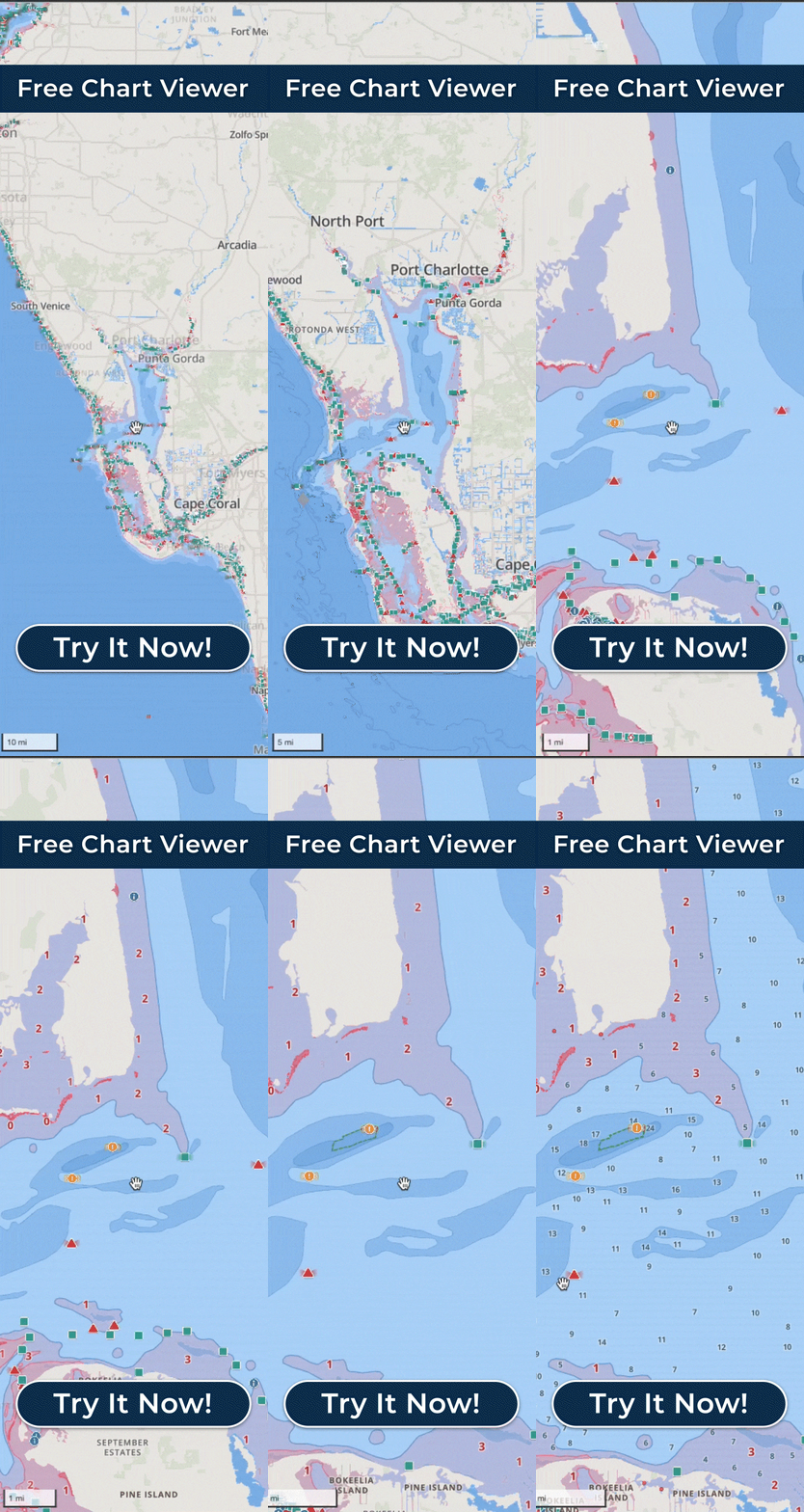
Desktop App – Chart Viewer
Wavve Boating is also available on your desktop.
Simply go to the Chart Viewer and login to your Wavve Boating account to access all your routes.
Still got questions?
Check out our Help Page